Tuesday, August 26, 2008

FeedMyInbox: Keeping Up with Feeds by Email

I’ve shared information on a number of sites and tools that can help you keep up with RSS feeds, but maybe you want something simpler to help you keep up with a blog or podcast. FeedMyInbox is a fast, efficient web-based tool that may be just what you’re looking for.

The tool is so simple that I’ll walk you through the 5 steps it takes to set up. But first, let me explain that the site does for you. You find a blog or a news site that you want to keep up with. Enter some information on the FeedMyInbox site, and that blog's entries will show up in your email inbox.

Why is that useful?

  • Perhaps you just don’t want to add another tool to the list of things you keep up with.
  • Maybe new technology like RSS feeds is making you feel a little overwhelmed and you want a “baby step.”
  • It could even be the case that you are all set up with FriendFeed and AtomKeep, but there are a few feeds you need to make sure that you see as soon as they’re published (for instance, the blog of a friend or colleague, district school closing information, university security announcements).
  • In the classroom, you might be looking for an email alternative for families and students who sometimes forget to visit the class blog where you post assignments and updates.
FeedMyInbox can take care of all these situations. You enter your information and forget about it. The feed for that blog post or newspaper will come to your inbox just like any other email message. Let me show you how simple it is. You can click on any of the images below to see a larger version of the screenshot.
  1. Identify a blog or another site with an RSS feed that you want to follow. I'm going to use this blog as my example.

  2. Go to the FeedMyInbox website and enter the address of the blog and the email address you want to receive the updates, and click the Submit button.

  3. You’ll see a message telling you to go check the email account that you entered for a confirmation message.

  4. Open up the email message and click the confirmation link, and then save this message for later. You can reply to it in the future if you need help.

  5. You’ll see a message telling you that the feed has been added.

That’s it. The next time the feed you’ve subscribed to is updated, you’ll get details in your email inbox. It’s simple. It requires no extra downloads and no additional websites to keep track of. Once you’ve set it up, you’re done. Slick, huh?

Tuesday, August 19, 2008

How to Streamline Your Social Updates

Last week, I talked about websites and software that can help you keep up with your colleagues all in one place. These social aggregators collect updates from a variety of social networks (like Facebook and Twitter) and present them all on one organized webpage. Set one up, and you easily keep up with what your friends, family, and colleagues are saying online.

That’s only half of the challenge of social networking though. What can you do to make sure that everyone sees what you have to say without visiting a dozen social networking sites? Social aggregators can help you here too.

Many of the tools that I mentioned last week not only allow you to read updates from all your friends in one place but also allow you to post updates to multiple sites. You write one updates, and the social aggregator pushes that update to all the networks you want. If you’re primarily interested in microblogging, for instance, a tool like Twhirl will allow you to post your 140-character update to your account at three different sites—Twitter, Jaiku, and Pownce. You’ll find other aggregators that allow you to both read from multiple sites and post the same update to those sites. The most universal tools I’ve found are Ping.fm and AtomKeep.

Ping.fm is to posting your updates what FriendFeed is to reading details from all your social networks. Once you’ve signed up for an account on Ping.fm, you can post a single update to over twenty different social networks, including Facebook, MySpace, Blogger, and Twitter. Settings in Ping.fm keep track of whether a network only posts microblog updates, status updates, or full blogs. And not only does this site streamline and organize the way you post updates to your friends and colleagues, Ping.fm allows you to send you posts by instant messages, from your cell phone, and from a Facebook application in addition to sending your posts from the Ping.fm website. It’s a great tool for simplifying the way you keep in touch with everyone. The site is still in its beta stage, so you need an invitation code. Use code “vivalaping” to get started.

Now that you’ve simplified the process of posting updates, what do you do when your homepage address needs to be updated on all those social networking sites? Who wants to visit all of them just to change that information in a profile. Here’s a secret: Set up AtomKeep and you won’t have to. You just enter your profile information on the AtomKeep site, and then you can sync your details with nearly thirty different websites. You may be worried about security, but no worries there. The site is not automatic. You tell it when to update another site, and you must enter your usersname and password each time, so your profiles should stay relatively safe. A word of caution: pay attention to the details that you enter for your profile and where you update. You may have a private website that you do not want to share on Facebook, for instance. AtomKeep has no way of knowing to exclude that website when it syncs things for you. The best rule of thumb is to only put information in AtomKeep that you would post on every site you add to your account.

So there you have it—FriendFeed from last week’s post and Ping.fm, and AtomKeep this week. Together the three sites should make it far easier to keep up with the Web 2.0 world. They’re all web-based and all free. Set them all up now, and you’ll be able to keep up with friends, family, and colleagues even when you’re busy in the classroom this fall!

Tuesday, August 12, 2008

How to Streamline Your Social Networks

This summer, I’m exploring a variety of Web sites and tools that you can use in the classroom and/or for your own professional development. Each week, I’ll talk about how it works, point out related sites, and discuss classroom connections. This week, I focus on social networking aggregators, tools that streamline the time you spend on social networking sites. And if you’re not sure what social networking is, the Common Craft Show has a fast video explanation that will make it all clear.

Time to get caught up on what your colleagues are doing? That means you need to check all your friends on Facebook, MySpace, LinkedIn, Ning, Twitter, Pownce, Jaiku, Blogger, LiveJournal, Digg, YouTube, Flickr, Plurk, Technorati, and delicious. Just the thought of all that is overwhelming, and it’s likely to take the entire evening to get all those sites checked—and that’s if you re lucky. Some nights you only get through two or three of the sites before you run out of energy and head to bed.

A social aggregator could make this process much easier. Rather than going to all those different sites, you could go to one that included updates from all those different social networks. 8Hands is one aggregator tool, which compiles information from your friends on ten different networking sites (like Facebook and LiveJournal). You just download and set up the 8Hands application, login, and catch up on everything in one place. This demo from the 8Hands site shows the features that the site offers:


While 8Hands is a tool you download, there are plenty of social network aggregators that you visit using your web browser. Friendfeed is one of the more popular of these sites. Friendfeed gathers postings from over forty different social networking sites, including blogs, image sharing sites, social bookmarking sites, and microblogging sites. Friendfeed creates a single RSS feed from all those sites, allowing you to view everything in one place.

If you’d like more organization for your social network aggregator, you might try SecondBrain. Not only does SecondBrain aggregate twenty-five sites, but it also allows you to arrange the information in folders, or collections. SecondBrain is still in beta and is a bit clunky, but its ability to categorize your networking sites may make this site useful in the future.

For my own connections, I’m sticking to Friendfeed for now. There are numerous other sites and tools out there though. For more alternatives, check out The 19+ Social Network Aggregator List from MakeUseOf and 20 Ways To Aggregate Your Social Networking Profiles from Mashable. And come back next week, when I’ll talk about how aggregator sites can streamline the way you post information to friends and followers in your social network.

Tuesday, August 5, 2008

Mind Mapping Graphic Organizers

This summer, I’m exploring a variety of Web sites and tools that you can use in the classroom and/or for your own professional development. Each week, I’ll talk about how it works, point out related sites, and discuss classroom connections. This week, I focus on a variety of online resources for mind mapping.

Mind maps are not new to the language arts and composition classroom. In fact, they have been in existence for centuries. You’ll see them labeled with various names—mapping, clusters, webbing—and combination terms such as mind webs or cluster map. These graphic organizers most frequently have a single label in the middle of the map with related ideas spinning out in a connected pattern. Here's an example I created using Bubbl.us:

Example Mind Map If you’re unfamiliar with this graphic organizer, be sure to check out How to make a mind map® in 8 steps for some tips. While the page refers to a specific software program, the general information in the tips can be applied to any way of making mind maps, even old fashioned pencil-and-paper techniques.

You can buy software like Kidspiration or Inspiration that is designed to make mind maps, but I want to provide some options for free and limited use tools that you can use without buying anything extra or paying a fee for a service. Each of the tools listed below includes all the basics you need to create general mind maps:

  • Bubbl.us: Free Internet tool, supports collaborative mapping
  • Ekpenso: Free Internet tool with Google Gears and Adobe Air versions
  • FreeMind: Free open source tool, once installed does not require Internet access
  • Mindmeister: Free Internet version allows 6 maps, supports collaborative mapping
  • Wisdomap: Free Internet version allows 3 maps
  • Mindomo: Free Internet version allows only 7 private maps (unlimited public maps)
Some of these tools include more sophisticated resources, but all include the most basic tools you need. If your school or district policies require that you use a tool that does not include a login, try the ReadWriteThink Webbing Tool.

For example maps you can share with students, be sure to visit TopicScape’s Directory of Mind Maps, which points to maps specfically on literature. Mappio provides a wider variety of example maps. The site allows visitors to upload and share their own maps as well. Both sites are directories. In other words, they point to maps on third-party sites. Many of the literature examples are on the Inspiration website for instance. The maps at these two example sites are often more sophisticated than the free tools will allow students to create, but they do show the range of options for mapping well.

Even if you choose not to have students do mind mapping in class, these example sites point to resources that you might use as you teach specific topics.

Tuesday, July 29, 2008

Wordle: Word Maps for Fun and Analysis

This summer, I’m exploring a variety of Web sites and tools that you can use in the classroom and/or for your own professional development. Each week, I’ll talk about how it works, point out related sites, and discuss classroom connections. This week, I focus on a text cloud program called Wordle.

You have probably seen a tag cloud. It’s a collection of the tags for a blog that uses larger and bolder fonts for the tags that are used most frequently and smaller regular fonts for the tags that are used less frequently. Tags between the two extremes are sized based upon where they fall on the spectrum. You can see the Tag Cloud for this blog over in the right sidebar, below the names of the Editors.

Wordle applies the structure of tag clouds to any chunk of text you'd like to analyze. The site includes a gallery of examples, which you can browse through to choose some appropriate to choose with students and colleagues. Perhaps you could use The Declaration of Independence as part of your discussion of colonial America, for example. There’s also a search that will help you find examples you might share. Remember that the tool is open to the general public, so there may be inappropriate texts in the Gallery.

I’ll admit that the tool is addictive. I found myself creating map after map. First I created a map of the homepage of this blog. Because the tool can make a map of any page with an RSS feed, all I had to do was give Wordle the blog’s URL, and the tool generated a map of the 150 words I’ve used most frequently:

Using the pull-down menus included with the map on the Wordle page, I played with the font, the colors, and the layout of the map until I arrived at one I liked. Wordle uses Java to work its magic, so you may need to update your version of Java for the tool to work. The FAQs on the site include suggestions and a link to the downloads.

Why is this a useful tool for English language arts and composition teachers? It’s fun, and anything that encourages writers to play with words is a good choice for the writing classroom. There’s more to it than that though. Ask students to use Wordle’s ability to analyze a chunk of text to create clougs for texts that they are writing. To test it, I pasted in the first chapter from my book (Designing Writing Assignments), and after a little playing with colors and layouts, I had this cloud:
The top 150 words were exactly those that I would have wanted. The four largest words in the cloud (students, assignments, curriculum, and writing) are exactly on target for the focus of the chapter and the book as a whole. Students can try a similar analysis and look at the words they use more frequently to see how they represent their writing.

The tool is robust enough to handle most texts that kindergarten through college students are likely to create. The manuscript version of my first chapter is twelve pages long and contains 2850 words. That length is far more than the average for most student papers.

Naturally, I didn’t stop with my own writing. I tried some literature as well. Here’s a poem I’m sure you’ll recognize:
After reading “The Raven,” students could examine how the cloud represents the story that the poem tells. Most will recall the repetition of key words such as raven and nevermore, but will they notice that the word soul is used more frequently than tapping and rapping?

As I looked at the cloud for “The Raven,” I couldn’t help feeling that I had created a piece 21st century text in its own right. I’m not sure where I want to use that image, but I really like it and may use it elsewhere. Fortunately, Wordle’s creator, Jonathan Feinberg, gives all rights to the images to the creators and even allows them to make money with them. See the FAQ for more details.

I can’t help sharing one more that I created. Here’s Martin Luther King Jr.’s “I Have a Dream” speech:
If I wasn’t sure that I had a new text when I created the cloud for “The Raven,” I was absolutely sold when I saw this one. I might use the image as an introduction to the speech, but it could just as easily be used as an intro or culminating text for a unit on the Sixties and Civil Rights. This may be my favorite image so far. I adore the size difference between the word freedom and the word jail (look for it under and to the right of the word will). I could spend exploring the ways these words flow and relate. If I could, I’d blow it up to poster size and add it to the wall in my office.

Wordle is a fairly basic site, but the results are anything but basic. Go play. You’ll catch the bug too.

Tuesday, July 22, 2008

Podcasts: The 21st Century Version of the Radio Show

You’ve probably heard or read the word podcast. Radio and television shows urge their audiences to subscribe to their podcasts for the latest updates. Newspapers suggest readers visit their podcast pages to find digital connections to the stories they print. Podcasts do not have to be published by mass media organizations however. It’s just as likely though that you’ll find a podcast by a colleague, your public library, or students you’ve taught.

To provide some background, let me explain what a podcast is. A podcast is a series of audio broadcasts that is distributed using an RSS feed. You can think of it as the 21st century version of a radio show. In fact, many radio stations and radio production companies post their radio shows online as podcasts. Chicago Public Radio, for instance, posts episodes of This American Life as podcasts, and my local public radio station, WILL-AM, posts podcasts of all the daily agricultural reports.

I should note that people do misuse the term podcast. In technical terms, an individual audio file that is not distributed by an RSS feeds is not podcasts. It’s just a basic audio recording. Such stand-alone audio files can be useful and fun, but for this week, I’m focusing on legitimate podcasts only. True podcasts provide new, ongoing resources while single audio files are one-time publications.

You subscribe to the RSS feed of a podcast and then download and listen to each episode using an audio player like iTunes or Windows Media Player. You can find complete instructions for the process using iTunes from the Apple website.

For an even better explanation of podcasts and how they work, watch this video from The Common Craft Show:


Now that you know what a podcast is, how do you find ones that you are interested in? If you use iTunes to listen to podcasts, you can visit the Apple Store, click on the Podcasts link, and begin finding the latest podcasts that have been published. There are similar ways to find podcasts in other audio players, but I use iTunes.

There are online sites you can visit to explore directories of podcasts. You can search through and find anything you like on sites like these (listed alphabetically):

Podcast Alley: http://www.podcastalley.com/
Podcast Pickle: http://podcastpickle.com/
Podcast Ready: http://www.podcastready.com/
There are also sites that list educational podcasts, such as the Education Podcast Network (http://epnweb.org/).

You can also seek out podcasts at the sites of professional organizations that you already know as well. Organizations like the American Library Association, the International Reading Association, and International Society for Technology in Education (ISTE) all have podcasts that might interest you.

Chatting about Books logoI’d be remiss if I didn’t share details on two monthly podcasts published by ReadWriteThink each month: Chatting About Books: Recommendations for Young Readers and Text Messages: Recommendations for Teen Readers. In Chatting About Books, host Emily Manning chats with kids, parents, and teachers about the best in children’s literature for ages 4 through 11. Discussions include reading tips and fun activities to do with children before, during, and after reading.

Text Messages LogoText Messages
podcasts provide book recommendations that adults can pass along to preteen and teen readers. Each episode features one in-depth recommendation plus suggestions of several other related books, audiobooks, or films that will engage and excite teen readers.

If all this discussion has gotten you thinking about how you might use podcasts with students, find some extra inspiration in the English Journal article “The Book Report, Version 2.0: Podcasting on Young Adult Novels.

Tuesday, July 15, 2008

Online Documentation Tools

This summer, I’m exploring a variety of Web sites and tools that you can use in the classroom and/or for your own professional development. Each week, I’ll talk about how it works, point out related sites, and discuss classroom connections. This week, I focus on online resources for building documentation citations.

Bibliographic style can be difficult to teach. There are exact formats that have to be followed precisely. Differences among citations may seem eccentric to students, and even more eccentric can be the differences among citation formats (e.g., MLA versus APA).

Most language arts textbooks include the most basic details on these citations. Websites like the Purdue OWL provide extensive lists and explanations on citations and reseearch writing. With these resources to guide students, writing bibliographical citations is just a matter of plugging details into an equation: Last name, First name. Book Title. Place of Publication: Publisher, Date of Publication. It’s simply an eccentric process of fill-in-the-blank.

That’s why online documentation tools can supplement the process in useful ways. Using online bibliographic entry generators, students still complete the process of filling in the blanks, but they can be less overwhelmed by the task. The process is really the same as it would be for someone using a language arts textbook: determine the kind of text and fill in the blanks of the citation form.

Naysayers will argue that these generators take away the responsibility to learn how to write bibliographies. I don’t think that’s the case. Students still have to determine the kind of text properly. If students can’t tell the difference between a single-authored book and a book authored by several people, they aren’t going to find the right format—whether they’re working with textbook instructions or an online generator.

Further, students still have to find all the necessary details for the texts they create citations for. No online generator is going to fill in the details students leave out. If the student skips place of publication, it’s going to be missing from the citation. That’s where editing and proofreading come in. No matter how students create their bibliographical entries, they’re still responsible for checking the entries against the standard formats and correcting any errors.

Online citation builders are just the 21st century way of filling in the blanks. For this week’s web highlights, I'm sticking to free sites. There are web-based services that ask for a fee of some kind, and there are pieces of stand-alone software, like EndNote (a sophisticated program that is probably beyond the needs of most K–College students). These tools are great too, but I’m focusing on tools that can be used in any classroom with the right computer and Internet resources.

So here are the sites that I recommend for building citations:

MLA Citation Generator
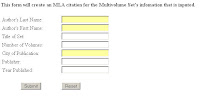
MLA Citation GeneratorThis barebones tool builds only seven kinds of entries. Its simplicity would be perfect for elementary and middle school students whose sources are fairly traditional.

Citation Builder
Citation Builder ScreenshotFrom the University of North Carolina University Libraries, this online tool can create only six kinds of entries; however, the related forms allow for more complex kinds of texts (e.g., multi-author books, online and print journal articles). Don’t let the limited number of choices on the homepage fool you. This tool can produce rather sophisticated entries and requires students to know which information is relevant on the forms for the texts they enter. It’s best suited for secondary and college students.

Oregon School Library Information System Citation Makers
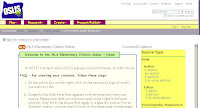
OSLIS Citation Maker ScreenshotThis versatile site offers three different citation makers: MLA citations for elementary students, MLA citations for middle and secondary students, and APA citations. Like the UNC University Libraries’ tool above, the MLA citations for older students includes forms that can result in rather complex citations. The Citation Maker for Elementary Students narrows down the options a bit. The pages in this tool are rather text heavy, making it appear a bit busy. Students would benefit from teacher demonstration and modeling to help them learn how to use the large amount of data on the pages.

EasyBib
EasyBib Screenshot EasyBib is a complete tool that includes forms for three dozen different kinds of texts, including advertisements, email messages, interviews, and photographs. Despite this wide range of options, the forms are fairly simple and, with guidance, could be used even with middle school students. If students are to use the tool independently, it’s more appropriate for secondary and college students. The citations that the tool creates can be printed, saved as an RTF file, or viewed online (and then copied and pasted into another document).

Note that this tool does include pervasive links and encouragement to purchase the company’s MyBibPro, but the free tools convinced me to include it. The tool is very complete, allows for annotation, and includes links to Facebook and MySpace communities that are bound to capture students’ attention.

Son of Landmark Citation Machine
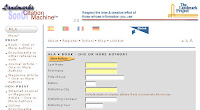
Landmarks Citation Machine ScreenshotCitation Machine is less slick than EasyBib, but it includes basic citation forms for not only MLA and APA, but also Chicago and Turabian—plus there are no annoying “Subscribe” links. The default links on the site include the forms for typical kinds of texts. Be sure to click the “More?” link under MLA and APA to expand the list to access a wide range of citation types, including podcasts, television shows, and government publications. With support from a teacher or librarian, the tool could be used by middle school students, but is probably best for secondary and college students.